
These instructions are provided as-is. Refer to the Electron docs for development help beyond this article. This sample app is also available at github.com/ggsoftwarellc/nitropay-electron-example
Before implementation please ensure that all createAd calls within the app have the following configuration option enabled and set to include ‘google’ as a value. Click here
Once you have the app live we require a period of review. To submit for review and for more information regarding working with Overwolf on your app, please contact us via Intercom! (that’s the green bubble in the bottom right hand corner)
ad-sample.html #
Ads must be created and embedded from a domain name that is approved for ad serving on NitroPay. The following file is an example of a standalone page that embeds 2x 300×250 ads. Please ensure you edit the script to point to your site ID, and you keep data-cmp-mode=”5″ on the script embed.
<!DOCTYPE html>
<html style="width: 100%">
    <head>
        <script data-cfasync="false">
            window.nitroAds = window.nitroAds || {
                createAd: function () {
                    return new Promise((e) => {
                        window.nitroAds.queue.push(['createAd', arguments, e]);
                    });
                },
                addUserToken: function () {
                    window.nitroAds.queue.push(['addUserToken', arguments]);
                },
                queue: [],
            };
        </script>
        <script data-cfasync="false" data-cmp-mode="5" async src="https://s.nitropay.com/ads-####.js"></script>
        <script data-cfasync="false" async src="https://consent.nitrocnct.com/loader.js"></script>
    </head>

    <body style="width: 100%; margin: 0">
        <div style="width: 300px">
            <div id="banner-1" style="display: block"></div>

            <script type="text/javascript">
                window.nitroAds.createAd('banner-1', {
                    sizes: [[300, 250]],
                    demo: true,
                    report: {
                        enabled: true,
                        position: 'bottom-right',
                        wording: 'Report Ad',
                    },
                    skipBidders: [],
                });
            </script>

            <br /><br />

            <div id="banner-2" style="display: block"></div>
            <script type="text/javascript">
                window.nitroAds.createAd('banner-2', {
                    sizes: [[300, 250]],
                    demo: true,
                    report: {
                        enabled: true,
                        position: 'bottom-right',
                        wording: 'Report Ad',
                    },
                    skipBidders: [],
                });
            </script>
        </div>
    </body>
</html>
cmp.html #
The following file must be remotely hosted on a domain that is approved for ad serving on NitroPay. It must be on the same domain as all of the ad embeds (such as ad-sample.html above).
<!DOCTYPE html>
<html style="width: 100%">
    <head>
        <script type="text/javascript">
            window.__npcmp_display_mode = 'app';
        </script>
        <script data-cfasync="false" async src="https://consent.nitrocnct.com/loader.js"></script>
    </head>

    <body style="width: 100%; margin: 0">
        <script>
            const urlParams = new URLSearchParams(window.location.search);
            const resurface = urlParams.get('resurface');

            function callback(tcData) {
                if (tcData?.eventStatus == 'useractioncomplete') {
                    window.close();
                }
            }

            function test() {
                if (window.__cmp) {
                    if (resurface) {
                        window.__cmp('showModal');
                    } else {
                        window.__cmp('showConsentTool');
                    }

                    window.__tcfapi('addEventListener', 2, callback);
                    return;
                } else if (typeof window['__npcmp_gdpr'] !== 'undefined' && !window['__npcmp_gdpr']) {
                    window.close();
                    return;
                }
                setTimeout(test, 100);
            }

            if (!resurface) {
                window.__tcfapi_queue = [['addEventListener', 2, callback]];
            }

            test();
        </script>
    </body>
</html>
main.js #
This example code creates a 1600×900 electron window, launches a the CMP and creates an ad. Update the relevant URLs.
const { app, BrowserWindow, BrowserView } = require('electron');
const path = require('node:path');

app.whenReady().then(() => {
    // Sample base window
    const parent = new BrowserWindow({
        width: 1600,
        height: 900
    });
    parent.loadFile('index.html');


    // URL to the ad embed
    const adURL = 'https://yoursite.com/app/ad-sample.html';

    // URL to your cmp.html
    const cmpURL = 'https://yoursite.com/app/cmp.html';

    // Your front page
    const referrer = 'https://yoursite.com/';

    // ## Create an ad window ##
    const ad = new BrowserView({
        webPreferences: {
            partition: 'persist:adpartition',
        },
    });

    // Remove app name and electron from user-agent
    const re = new RegExp(`(${app.getName()}|Electron)/[\\d\\.]+ `, 'g');
    ad.webContents.setUserAgent(ad.webContents.getUserAgent().replace(re, ''));

    // Position ad to the right side (example)
    // Width is set larger than viewable area to avoid being treated as mobile device by ads
    let bounds = parent.getBounds();
    ad.setBounds({ x: bounds.width - 325, y: 10, width: 1280, height: 600 });
    parent.on('resize', function () {
        bounds = parent.getBounds();
        ad.setBounds({ x: bounds.width - 325, y: 10, width: 1280, height: 600 });
    });

    parent.setBrowserView(ad);

    // ## Load the CMP ##

    const createCMP = () => {
        return new BrowserWindow({
            width: 1120,
            height: 600,
            center: true,
            closable: false,
            skipTaskbar: true,
            modal: true,
            titleBarStyle: 'hidden',
            transparent: true,
            hasShadow: false,
            frame: false,
            moveable: false,
            fullscreen: false,
            webPreferences: {
                partition: 'persist:adpartition',
            },
            parent,
        })
    }

    const cmp = createCMP();

    // Safe to show ads once the CMP window is closed
    cmp.on('closed', () => {
        ad.webContents.loadURL(adURL, {
            httpReferrer: referrer,
        });
    });

    cmp.loadURL(cmpURL);
});
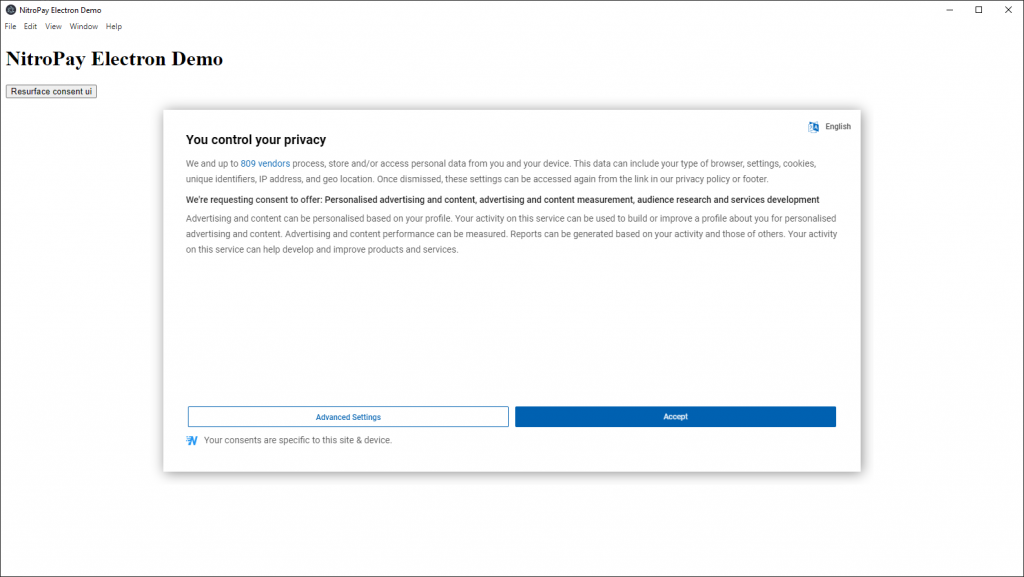
These examples should produce the following CMP view when compiled in Electron. Clicking “Accept” on the CMP will then load the sample ads.
GDPR and resurfacing the CMP UI #
Our example leverages the geo data exposed by NitroPay to determine if the user is in a country where a CMP needs to be shown. It is the publisher’s responsibility to create a way to resurface the CMP UI so that a user can change their consent.
An example of how this could be done is by using Electron’s event emitters. Within your app’s local files you could create a button like:
<button id="resurface">Update my consent preferences</button>

<script type="text/javascript">
    const btn = document.getElementById('resurface');
    btn.addEventListener('click', async function() {
        await window.cmp.resurface();
    });
</script>
Create the supporting function in your preload script
const { contextBridge, ipcRenderer } = require('electron')

contextBridge.exposeInMainWorld('cmp', {
  resurface: () => ipcRenderer.invoke('resurface')
})
Ensure the main window is using that preload script
const parent = new BrowserWindow({
    width: 1600,
    height: 900,
    webPreferences: {
        preload: path.join(__dirname, 'preload.js'),
    }
});
Create the listener that actually resurfaces the UI in your main.js. Logic for CMP resurfacing exists in the cmp.html example above.
// Handles resurfacing the CMP
ipcMain.handle('resurface', () => {
    const cmp = createCMP();
    cmp.loadURL(cmpURL + '?resurface=1');
});
The consent button will be visible to all users unless your app supplies a check for whether the user is in a GDPR country before rendering it. If a user in a non-GDPR country sees and clicks the button, nothing will appear to happen.